Best Productivity Apps for iPad: The Short Answer
Goodnotes 6 is the best all-around pick for most iPad users because it turns the Apple Pencil into a full note-and-PDF workflow. It converts handwritten notes into searchable text, and you pay once instead of every month.
From there, the best productivity apps for iPad depend on the job. For note-taking, Goodnotes 6 beats Notability on handwriting search and pricing. For task management, Todoist wins on cross-platform sync and natural-language input.
This is a categorized comparison, not one long list. Each pick was tested against real iPadOS behavior: Stage Manager, keyboard shortcuts, Pencil hover, and Split View.
Three apps failed those tests. They’re named too, so you don’t waste a download.
How I Tested These Apps (and Why It Matters)
Every app here got a hands-on test on a real iPad, not a spec sheet read. I checked how each one handles Stage Manager, keyboard shortcuts, Apple Pencil hover, and Split View — the iPadOS features that separate a true iPad app from a stretched phone app.
Pricing was verified by hand, with the date I last checked it noted for each app. Free apps stay in the mix if they earn their place.
No vendor paid for a spot, and no affiliate link shaped a ranking. If an app wasted my time, I say so.
Best iPad Productivity Apps for Note-Taking
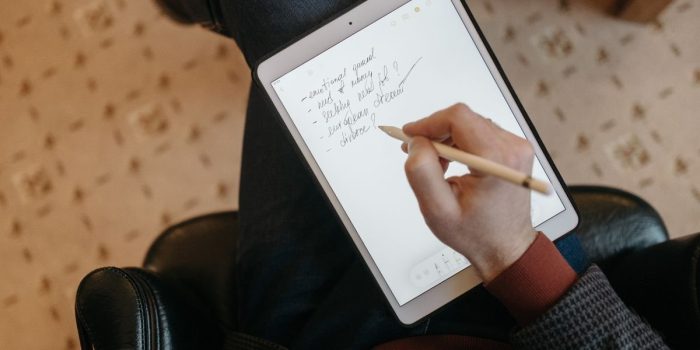
Goodnotes 6 beats Notability for note-taking. It wins on handwriting search and one-time pricing. It turns the Apple Pencil into a full note-and-PDF workflow. That is why it tops this list of iPad note-taking apps.
Goodnotes 6 lets you search your own handwriting. So a scribbled lecture or meeting note becomes findable later. Notability charges a yearly subscription for similar tools. Goodnotes offers a one-time purchase. That gap decides goodnotes vs notability for most people.
PDF annotation on iPad is where Goodnotes feels built for the tablet. You can highlight, write, and drop in typed text right on a PDF. It all has low lag on the Apple Pencil. It is one of the best iPad note taking apps for PDF annotation iPad work.
Apple Notes is the best free pick. It is already on your iPad. It syncs through iCloud. It now handles scanned text and handwriting search. For quick capture, nothing is faster.
Microsoft OneNote wins for individuals and teams already inside Microsoft 365. It handles Excel and PowerPoint embeds. It syncs across desktop and mobile. It stays free.
All four support Apple Pencil, handwriting-to-text, and drag and drop. Pick Goodnotes for a one-time price. Pick Notability for audio recording. Pick Apple Notes for free speed. Pick OneNote for work files.
Best iPad Productivity Apps for Task Management
For task management, Todoist wins on cross-platform sync and natural-language input. Type “pay rent every first Friday” and it files itself under the right project with the right repeat. That mix of speed and sync is why it tops my list of iPad task management apps.
Things 3 is the prettier pick, but it is Apple-only. If you also work on a Windows PC, Things leaves you stranded. Todoist runs everywhere: iPad, iPhone, web, and desktop.
Apple Reminders is the best free choice. It is already installed, syncs through iCloud, and now supports tags and smart lists. For simple to-do lists, it is plenty.
TickTick sits in the middle. It adds a Pomodoro timer and a calendar view without a big price jump.
All four support widgets on the Home Screen, Siri integration, and drag and drop between apps. Todoist and TickTick follow Getting Things Done (GTD) methods well, with inboxes and project folders.
So: Todoist for sync, Things 3 for design, Reminders for free, TickTick for extras.
Best iPad Productivity Apps for Calendar and Scheduling
Google Calendar wins for calendar and scheduling. It syncs everywhere. Its Gemini AI assistant can build events from a plain sentence. It is also the best free productivity app for iPad in this category.
Google Calendar works the same on iPad, iPhone, web, and desktop. Type “lunch with Dana Tuesday at noon” and Gemini fills in the details. That everyday AI assistant saves real time when you plan a busy week.
Microsoft Outlook is the pick if your work runs on Microsoft 365. It puts mail, calendar, and files in one place. It opens Excel and PowerPoint attachments without leaving the app.
Apple Calendar is the free default. It is clean, fast, and already tied to your Apple ID. Fantastical is the paid upgrade. It has natural-language entry and a polished interface on iPad.
All four show lock-screen widgets. Your next event is one glance away. They also cache your schedule offline. That matters on flights or spotty Wi-Fi.
Best iPad Productivity Apps for Document Editing and Office Suites
For document editing, Microsoft 365 wins on desktop-class formatting and OneDrive integration. Word, Excel, and PowerPoint on iPad keep the features you rely on, from pivot tables to tracked changes.
That matters when you need to replace a laptop for real work. Files open in OneDrive with full fidelity, so a spreadsheet looks the same on iPad as on a Windows PC.
Google Workspace is the best free pick. Docs, Sheets, and Slides run in Safari or the app, sync through Google Drive, and support offline editing. For individuals and teams already living in Google, it is hard to beat.
Apple’s iWork suite is the home-team answer. Pages, Numbers, and Keynote are free, optimized for touch, and built for Apple Pencil markup. You can draw on a contract or highlight a slide with the pencil, then share the file.
All three suites support Split View. Drag and drop a chart from Numbers into Keynote, or pull a photo from Photos into a Word doc. It works because iPadOS treats drag and drop as a first-class gesture.
If you want one app to start with, install Microsoft 365. It covers the widest range of document tasks and plays well with everything else on this list.
Best iPad Productivity Apps for Cloud Storage and File Management
For cloud storage and file management, Apple Files is the best pick for most iPad users because it connects to iCloud, Google Drive, Dropbox, and OneDrive in one place. It is the built-in file manager on iPadOS, so it is free and needs no setup.
Apple Files wins on native iPadOS integration. Other apps can save into it, and you can drag and drop files between apps without leaving the screen.
Google Drive and Microsoft OneDrive are strong backups. Both offer generous free tiers and work well alongside their office apps. Dropbox is the veteran pick, with fast sync and clean sharing links.
Offline access matters on a plane or a spotty network. All four let you mark files for offline use, so you can open them without Wi-Fi.
If you want one free productivity app to start with, Apple Files is it.
Best iPad Productivity Apps for Email
For email, Spark Mail is the best email app for iPad because its AI sorting and unified inbox cut through clutter fast. Gmail and Microsoft Outlook are the other two worth your time.
Spark pulls every account into one inbox and uses AI to sort mail into priority and newsletter piles. Swipe gestures let you archive, snooze, or pin a message with one thumb.
Gmail wins if you live inside Google Workspace, since labels and filters carry over cleanly. Outlook is the pick for Microsoft 365 users, keeping mail, calendar, and files in one place.
All three handle attachments well. You can save a PDF straight to Apple Files or drag it into another app in Split View. Offline sync means you can read and draft replies on a plane, then send once you reconnect.
Best iPad Productivity Apps for Project Management and All-in-One Workspaces
Notion is the best iPad project management app for most people because it bends to fit any workflow, not the other way around. It wins on flexibility and database views.
The block-based editor lets you drag and drop text, images, and tables anywhere on a page. Turn any list into Kanban boards with a tap, then group tasks by status or due date.
For task management software, Notion covers projects and tasks in one place. Cross-platform sync keeps your desktop and mobile views identical, so you can start on a laptop and finish on iPad. Among iPad project management apps, it sets the standard for flexibility.
ClickUp is the strongest alternative. It packs more built-in tools, but the interface feels heavier on a touch screen. Notion vs ClickUp usually comes down to simplicity versus raw features.
Monday brings polished dashboards for individuals and teams, while Obsidian suits writers who want plain files and offline control.
All four are free to start, and each is optimized for touch with Apple Pencil support.
Best iPad Productivity Apps for Focus and Time Management
For focus and time management, Forest wins because it turns staying off your iPad into a game you can see. Plant a tree, and it grows while you work. Pick up the iPad to scroll, and the tree dies.
That visual cost beats a silent timer for most people. Forest also blocks the apps you choose, so the tree has teeth.
Flow adds a Pomodoro technique timer with ambient sounds. FocusPomo keeps the same cycle simple and free. FocusedOS builds whole work sessions around Shortcuts automation, so one tap starts your timer, silences alerts, and opens your task management app.
My forest app review verdict: it is the best free productivity app for iPad in this category.
Best iPad Productivity Apps for Spreadsheets
For spreadsheets, Google Sheets is the best pick because it lets several people edit the same file at once, and its Gemini AI can write formulas for you.
Microsoft Excel is the stronger choice for heavy number crunching. It handles big files and complex formulas better, and it pairs with Excel and PowerPoint for work.
Both apps edit offline, so you can work without Wi-Fi and sync later. Both also offer timeline views for tracking projects.
Google Sheets is free, which makes it the best free productivity app for iPad in this category.
Best iPad Productivity Apps for Presentations
Keynote is the best iPad presentation app for presentations. It turns Apple Pencil into a live laser pointer. Its animations are built for iPad screens. Microsoft PowerPoint is the safer pick for sharing files with coworkers. Google Slides wins when your team edits slides together.
All three are iPad presentation apps. They all support presenter mode. This shows your notes on the iPad while the audience sees only the slide. They also work with external displays through USB-C or AirPlay.
Keynote and PowerPoint both let you draw on slides with Apple Pencil. This is great for highlighting a chart during a meeting.
Best iPad Productivity Apps for PDF Annotation
PDF Expert is the best iPad app for pdf annotation ipad. It does forms, edits, and Apple Pencil markup all in one place. For pdf annotation on iPad, it beats Goodnotes 6 and Notability on real editing tools.
PDF Expert lets you fill in forms, fix typos, and sign documents. My full pdf expert review found it syncs cleanly with Google Drive and Dropbox.
Goodnotes 6 and Notability are still strong for handwritten markup. Both turn handwritten notes into typed text. Both sync across devices.
Best iPad Productivity Apps for Habit Tracking
Streaks is the best iPad app for habit tracking because it keeps things simple and syncs with your Apple Watch. For building daily routines, it beats Habitica and Habitify on ease of use.
Streaks tracks up to 24 habits at once. You tap a tile to mark a task done, and the app keeps your streak alive. It also sends reminders and offers Home Screen widgets.
Habitica turns habits into a role-playing game, which some people love. Habitify sits in the middle, with clean charts and Apple Health ties. My streaks app review covers this in more depth.
Best iPad Productivity Apps for Automation and Shortcuts
Apple Shortcuts is the best iPad productivity app for automation because it’s built into iPadOS and runs from widgets, the Home Screen, or Siri. For connecting apps, it beats Zapier on the iPad.
Shortcuts chains your apps into one tap. A single shortcut can pull tasks from your to-do list app, drop them into Google Calendar, and start a focus timer.
Zapier works better for web apps on desktop and mobile. Its iPad app is limited, so most people set up Zaps in a browser.
Start simple: build one shortcut for your morning routine, then add steps as you learn.
Best iPad Productivity Apps for Time Tracking
For time tracking, Toggl Track beats Harvest and Time Doctor on simplicity and its free tier. Toggl Track wins because you tap once to start a timer and see clean reports without setup.
Harvest adds invoicing, which suits freelancers billing clients. Time Doctor tracks screenshots and activity, aimed at teams rather than solo users.
All three sync across iPad, desktop, and mobile. You can start timers by voice with Siri shortcuts, then check weekly reports on the iPad.
For a fuller look, this Toggl Track review covers the free plan’s limits.
Which iPad Productivity Apps Fail the iPadOS-Native Test?
Not every popular app earns a spot on this list. Several big names fail the iPadOS-native test, and that costs you real time.
Evernote still handles Split View poorly, and its Stage Manager support feels like an afterthought. Trello lacks Apple Pencil hover, so you never get that preview before you tap. Asana has weak keyboard shortcuts, which slows anyone trying to replace a laptop.
Why does this matter? iPadOS rewards apps built for touch, drag and drop, and external keyboards. An app that ignores these forces extra taps and breaks your flow.
So when you ask how to use your iPad for productivity, the honest answer is: pick apps that respect the platform. A pretty interface on iPad means little if the basics are missing.
What Is the Best Free Productivity App for iPad?
Apple Notes is the best free productivity app for iPad because it costs nothing, syncs through your Apple ID, and supports Apple Pencil with no notebook limit. Goodnotes 6 is the better app overall, but its free tier stops at just 3 notebooks.
That gap matters. Free tiers differ wildly, so check what each one actually gives you before you commit.
Todoist free covers 5 active projects and tasks, then pushes reminders and filters behind the paywall. Google Calendar is free with no real limits, and Google Drive gives you 15GB to share across Drive, Gmail, and Photos.
Goodnotes free caps you at 3 notebooks with no handwriting search. Apple Notes has no cap at all.
So if free is the goal, start with Apple Notes.
How to Build a Complete iPad Workflow: 3 Real Examples
For students, Goodnotes 6 + Todoist + Google Calendar is the chain that works: capture in Goodnotes 6, process in Todoist, time-block in Google Calendar. For freelancers, Toggl Track + Harvest + Notion covers the money side. Here are the exact steps.
Student Workflow: Goodnotes 6 + Todoist + Google Calendar
Write lecture notes in Goodnotes 6 with Apple Pencil. Highlight anything that becomes a task.
In Todoist, type “read chapter 4 tomorrow” — natural-language input sets the date for you.
Open Google Calendar and drag that task into a study block. Use Split View to see both at once.
Then build one Shortcut: when you open Goodnotes 6, it starts a Focus mode and silences alerts.
Freelancer Workflow: Toggl Track + Harvest + Notion
Start Toggl Track the moment a client call begins. One tap, no fuss.
Log billable hours in Harvest, then turn them into an invoice. Harvest pulls the time in for you.
Keep projects and tasks in Notion. Drag client notes from Google Drive straight into a Notion page.
One Shortcut ties it together: stopping Toggl Track adds the entry to Harvest and posts a line in Notion.
How to Avoid Data Lock-In and Migrate Between iPad Productivity Apps
Before you commit to any app, check one thing: can you get your data out? Goodnotes 6 and Notion both export cleanly, which is why they top their categories.
Export formats matter more than features. Markdown keeps notes readable in any app. PDF locks layout but not text. CSV moves tasks and tables between tools.
Notion to Obsidian is the easiest migration. Export your workspace as Markdown and CSV, then import both into Obsidian. Links and file names usually survive.
Goodnotes to Notability works through PDF. Export notebooks as PDFs, then import them into Notability. You lose editable handwriting, but nothing else.
Skip apps that only export locked files. If you cannot leave with your notes, do not start there.
Which iPad Productivity Apps Have the Best Accessibility Support?
For accessibility, Apple Notes and Microsoft OneNote lead because they fully support VoiceOver, Voice Control, Dynamic Type, and Switch Control.
VoiceOver reads the screen aloud for blind and low-vision users. Voice Control lets you tap and dictate by voice. Dynamic Type scales text up. Switch Control drives the iPad with one button.
Goodnotes 6 and Notability support Apple Pencil and Dynamic Type well, but their VoiceOver coverage is thinner. Todoist and Google Calendar handle VoiceOver cleanly.
Notion is the weak spot. Its block editor confuses VoiceOver, and drag and drop is hard with Switch Control. Test any app with VoiceOver on before you rely on it.
iPad Productivity Apps Compared: Pricing and Features
| App | Best for | Standout iPad feature | Price | Free tier | Export |
|---|---|---|---|---|---|
| Goodnotes 6 | Notes and PDFs | Handwriting search | $9.99/yr | 3 notebooks | PDF, images |
| Notability | Audio notes | Recording sync | $14.99/yr | Limited edits | PDF, RTF |
| Apple Notes | Quick capture | Instant sync | Free | Full | |
| OneNote | Free-form notes | Infinite canvas | Free | Full | |
| Todoist | Tasks | Natural language | $5/mo | 5 projects | CSV, JSON |
| Things 3 | Simple tasks | One-time buy | $19.99 | None | CSV |
| Apple Reminders | Basic lists | Siri capture | Free | Full | None |
| TickTick | Tasks plus calendar | Built-in Pomodoro | $35.99/yr | Full basics | CSV |
| Google Calendar | Scheduling | Gemini AI | Free | Full | ICS |
| Outlook | Work email | Unified inbox | Free | Full | ICS |
| Apple Calendar | Apple users | Native widgets | Free | Full | ICS |
| Fantastical | Power users | Natural language | $56.99/yr | Limited | ICS |
| Microsoft 365 | Office files | Excel and PowerPoint | $69.99/yr | Web only | Office formats |
| Google Workspace | Collaboration | Real-time editing | Free | Full | Office formats |
| Notion | All-in-one | Databases | $96/yr | Limited blocks | Markdown, CSV |
Frequently Asked Questions
What apps should I use for real work on an iPad?
Want to use an iPad for real work? The fastest answer is one app per job: Goodnotes 6 for notes, Todoist for tasks, and Google Calendar for scheduling.
Does Apple make its own productivity apps for iPad?
Yes, Apple makes its own productivity apps. They are free. Apple Notes, Apple Reminders, Apple Calendar, Pages, Numbers, and Keynote all come installed. Apple Shortcuts ties them together. For many people, that set alone can replace a laptop for everyday work.
What productive things can you do on an iPad?
Here are productive things you can do on an iPad: take handwritten notes with Apple Pencil support, turn handwritten notes into typed text, manage projects and tasks, edit Excel and PowerPoint files, annotate PDFs, and run a to-do list app with widgets on the home screen.
What is the best free productivity app for iPad?
The best free productivity app for iPad depends on the job. Apple Notes is the strongest free note-taking pick. Google Calendar is the best free scheduler. Todoist’s free tier covers most personal task management. All three install from the Apple App Store in minutes.
How should I choose iPad app recommendations?
For more ipad app recommendations, start with the free tiers above. Then upgrade only when you hit a real limit.
Final Thoughts: The Best iPad Productivity Stack for You
The best iPad productivity stack is small: Goodnotes 6 for notes, Todoist for tasks, Google Calendar for scheduling, and Apple Files to tie it together. Add Microsoft 365 or Notion only if your work demands it.
A workflow beats a folder full of downloads. Every app you add costs setup time and attention. Pick one tool per job, learn its iPad gestures, and let drag and drop move work between them.
Start on free tiers. Apple Notes, Google Calendar, and Todoist free cover most people for months. Upgrade when you hit a real wall, not before.
Your iPad should help you get things done, not give you more to manage. Build the stack once, then get back to the work.