The Best Photo Editing Apps, at a Glance
Adobe Lightroom Mobile is the best overall photo editing app for most people. It has pro-grade tools and a free tier. The short answer to “what is the best photo editing app” is Lightroom for power, Snapseed for free.
Snapseed is the best free photo editing app. It gives you every essential editing tool. It has no ads, no watermarks, and no account. Apple Photos wins on iPhone because it’s already there. It now handles Clean Up too — but only on newer hardware.
Google Photos is the best Android pick. Its AI features, like Magic Eraser, work without a subscription. VSCO is best for filters and presets. But most of its good ones sit behind a paid plan.
| App | Best for | Platform | Price |
|---|---|---|---|
| Lightroom Mobile | Overall | iOS, Android, desktop | Free tier; premium requires a subscription |
| Snapseed | Free editing | iOS, Android | Free |
| Apple Photos | iPhone users | iPhone only | Free |
| Google Photos | Android users | Android, iOS | Free; some AI tools need Google One |
| VSCO | Filters and effects | iOS, Android | Free tier; paid plan for full presets |
Here’s what each one actually feels like after you tap Install.
What Makes the Best Photo Editing App?
Adobe Lightroom Mobile is the best overall photo editing app for most people because it pairs pro-grade tools with a free tier. To pick it, I judged every app on the same short list: tools, ease of use, repeatable results, pricing, and where it runs.
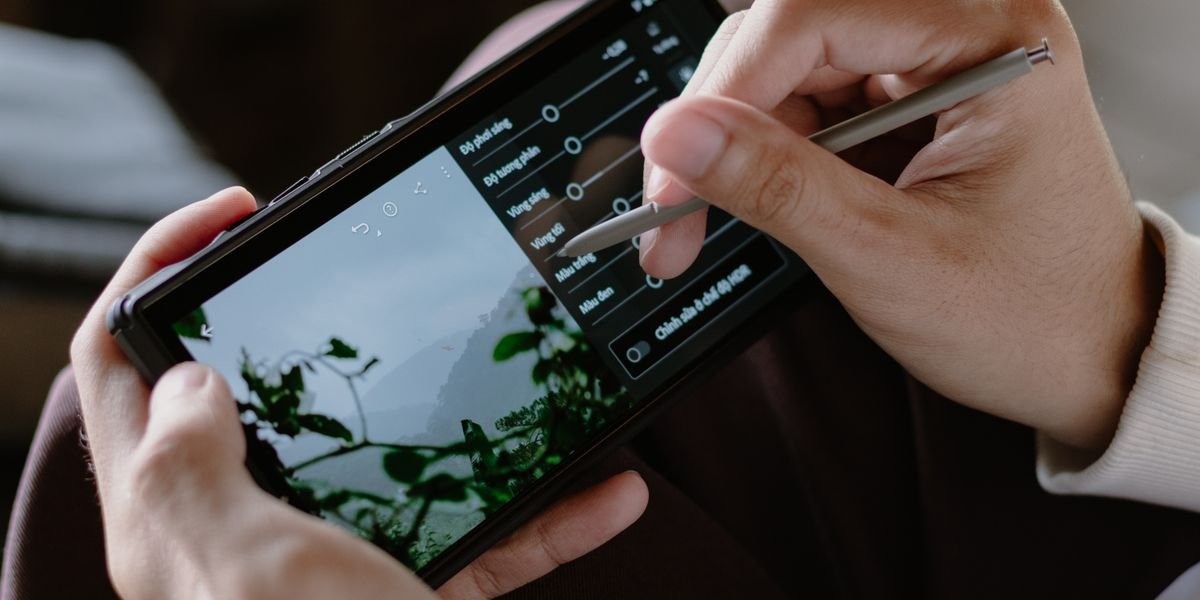
First, the tools. A good app covers the basics — exposure, contrast, color, and cropping — and also the deeper ones: tone curve editing, HSL (hue, saturation, and lightness) sliders, and masking. Shadows and highlights control matters too. If an app can’t fix a blown-out sky or a flat face, it doesn’t make the cut.
Second, ease of use. The best photo editing apps feel easy to use on a phone, not just on a desktop. I checked how fast a new user could find the basic editing tools and get a clean result without a tutorial.
Third, repeatable results. Presets and tools that save a look let you match edits across a whole camera roll. I tested whether each app could copy one edit to many photos.
Finally, pricing and platforms. Free and paid tiers both count, but ads and nagging pop-ups don’t. I also noted which apps run on the Apple App Store, Google Play, and PC.
I tested 30+ apps the same way: the same photos, the same edits, on iPhone, Android, and desktop.
Which Photo Editing App Is Considered the Best Overall?
Adobe Lightroom Mobile is the best overall photo editing app for most people because it pairs pro-grade tools with a free tier you can actually use. Curves, masking, healing, and Generative Remove sit in one app that runs on iPhone, Android, and PC.
Adobe Lightroom Mobile: pro tools, a real free tier, and the best AI removal
Lightroom Mobile is best for anyone who wants room to grow, because the free version already covers serious editing. You get exposure and color fixes, shadows and highlights, cropping, and tone curve editing. It also shoots and edits RAW files, which hold far more data than a phone JPEG. That is why so many professional photographers keep it on their phones.
The paid tools are where it pulls ahead. Masking lets you edit just the sky or a face. Generative Remove erases objects and rebuilds what was behind them — the best AI removal I tested. Presets let you copy one look across a whole camera roll.
What you get free vs. Lightroom Premium
The free photo editing side is generous: the full set of basic editing tools, RAW support, and cloud sync for a small number of photos. Premium adds Generative Remove, healing, masks, and the full preset library. If you only fix brightness, contrast, and color, free is enough.
Lightroom Mobile pricing: the cheapest path to Premium
Lightroom Premium costs about $4.99 a month or $49.99 a year through the Apple App Store or Google Play. The cheaper route is the Photography plan (about $9.99 a month), which bundles Lightroom and Photoshop for PC. Watch the pricing pages: Adobe often lists several plans, and the mobile-only one is easy to miss.
What Is the Best Free Photo Editing App?
Snapseed is the best free photo editing app because it costs nothing and still gives you pro-level tools — no ads, no watermarks, no subscription. It is made by Google and works on both iPhone and Android.
Snapseed: the most powerful editor you can get for $0
Snapseed is best for people who want real editing power without paying because it packs tools most free apps charge for. U Point lets you tap a spot and change only that area — brighten a face, darken a sky — without drawing a mask. It also opens DNG RAW files, so you keep more data when you edit exposure and color. You get tone curve editing, shadows and highlights, and selective filters, all free.
The Snapseed 4.0 redesign backlash: what actually changed
Snapseed 4.0 is best avoided if you like the old layout, because the 2025 redesign moved tools around and many longtime users pushed back. The core editing tools are still there, but the simpler menu that made Snapseed easy to use is gone, and some users say it now takes more taps to reach basic tools. If you are new, give it a week before you judge it.
Snapseed on Android: why your version is stuck in May 2024
Snapseed on Android is best treated as a frozen app, because the Google Play version has not had a real feature update since May 2024. The iPhone build gets updates first. The app still works well, but do not expect new AI features like the ones in Lightroom Mobile or Google Photos.
Which Photo Editing App Is Best for iPhone?
Apple Photos is the best photo editing app for iPhone. It is free. It is already on your phone. Its AI Clean Up tool is as good as many paid apps. You do not need to download anything. You do not need to make an account to start editing.
Apple Photos: the free default that’s better than you think
Apple Photos is the best free photo app on iPhone. It covers the basics well. It adds tools most free apps charge for. You get cropping, brightness and contrast, shadows and highlights, and full exposure and color controls. Photo Styles let you apply a look to every shot. Copy/paste edits let you paste the same adjustments onto a whole batch of photos at once. It also opens ProRAW files, Apple’s high-detail RAW format. That means you can edit without losing image data.
Apple Photos AI Clean Up: which iPhones actually get it
Clean Up is the best free AI feature on iPhone. But only newer phones have it. Apple’s AI Clean Up tool needs an iPhone 15 Pro, iPhone 15 Pro Max, or any iPhone 16 model or later. On older iPhones, the button is not there. If you have one of those newer phones, Clean Up removes unwanted objects and people from a shot in a few taps. It holds up against paid tools like Google’s Magic Eraser.
Which Photo Editing App Is Best for Android?
Google Photos is the best photo editing app for Android. It comes pre-installed on most phones. It shows no ads. It includes strong AI tools that cost nothing to try. For quick, everyday edits, it’s the easiest place to start.
Google Photos: free, ad-free, and deeply integrated
Google Photos is the best free photo app on Android. It’s already on your phone. It works without an account for basic edits. The basic editing tools cover cropping, brightness, contrast, shadows, and highlights. They also include ready-made filters. It’s easy to use. Your edits sync across devices. One gap: there’s no step-by-step undo. Fixing a wrong move means backing out of the tool you’re in. It also has no blemish or red-eye removal. That matters for face photos.
Google Photos AI: Magic Eraser, Reimagine, and the Google One paywall
Magic Eraser is the best free AI feature on Android. But only some of Google’s AI tools stay free. Magic Eraser removes photobombers and stray objects in a tap. Reimagine rebuilds parts of a photo from a text prompt. It requires a Google One subscription. So Google Photos is free and paid at once. The core editor costs nothing. The more advanced AI features sit behind a monthly fee.
What Photo Editing App Do Most Professional Photographers Use?
Adobe Lightroom is the app most professional photographers use. It handles RAW files and keeps huge photo libraries in one place. Its ecosystem is the reason. Edits sync across phone, tablet, and desktop. The preset market is the largest of any editor. For most working shooters, that mix of photo editing software and cloud backup is hard to beat.
Capture One vs. Lightroom: when tethered shooting and studio color grading win
Capture One is the serious alternative for studio and tethered work. It gives faster live tethering and finer color control. Tethered shooting means your camera stays plugged into a computer. Each shot lands on screen right away. Capture One’s color editor and skin-tone tools beat Lightroom’s for studio portraits. Many high-end retouchers swear by them.
The catch is cost and learning time. Capture One costs more than Lightroom. Its interface takes longer to learn. Lightroom remains the safer pick for most people: strong RAW editing, easy to use tools, and a free mobile tier. Choose Capture One only if you shoot tethered in a studio and need that extra color precision.
Which Photo Editing App Has the Best Filters and Presets?
VSCO is the best photo editing app for filters and presets because its film-style packs look like real film, not a cheap color wash. The CG1–CG8 packs copy classic Kodak films, and the KP1–KP9 packs emulate Kodak Portra, a film loved for soft skin tones. You can save any preset you build and reuse it on the next photo in one tap.
The free plan is thin. It gives you about 15 filters, and most of the good ones sit behind VSCO Plus at $29.99 a year. Paying month to month costs $7.99, so the yearly plan is the better deal if you edit often. VSCO runs on both the Apple App Store and Google Play, so iPhone and Android users get the same tools and filters.
One limit to know: VSCO’s AI Lab, its newer set of AI features, works only on iOS.
Free vs. Paid Photo Editing Apps: What Do You Actually Get?
Free apps already cover the basics well. Snapseed, Apple Photos, and Google Photos are all ad-free and handle cropping, brightness, contrast, exposure and color fixes, and shadows and highlights without charging you a cent. What paid tiers add is the next level: AI features like Generative Remove and Magic Eraser, cloud storage, and advanced masking.
What you get for free (and what’s actually ad-free)
The best free photo editing apps are genuinely free, not trial versions. Snapseed has no ads, no watermarks, and no subscription at all. Apple Photos and Google Photos are also ad-free, though Google’s stronger AI tools sit behind a Google One plan. Watch for “free” apps that lock essential editing tools or push full-screen ads.
2026 pricing compared: Lightroom, VSCO, Polarr, and Photoshop Express
Paid photo editing usually means a subscription. Lightroom Mobile costs $6.99 a month for the mobile-only plan, or $11.99 a month for 1TB of cloud storage. VSCO Plus runs $29.99 a year. Polarr charges $7.99 a month. Photoshop Express is free with optional in-app purchases.
Prices change often, so check the Apple App Store or Google Play listing before you buy. Some competitor pricing you’ll see online is out of date. Treat any price without a 2026 date with doubt.
Which Photo Editing App Is Completely Free (No Hidden Costs)?
Snapseed is the best completely free photo editing app because it has no ads, no watermarks, and no subscription — every tool is open from the first launch. Apple Photos and Google Photos come close: both are free and ad-free, and both come pre-installed on their own phones. None of these three ever asks you to pay to save a photo.
“Free” means different things across the category, though. Pixlr is free but ad-supported, so you trade screen space for tools. NCH PhotoPad is “nagware” — free to use, but it keeps prompting you to buy the paid version. Neither puts a watermark on your image, but both interrupt your editing.
So check two things before you download: does it add a watermark, and does it show ads or upgrade pop-ups? If the answer to both is no, the app is genuinely free.
Do AI Photo Editing Features Actually Work?
Lightroom’s Generative Remove is the best AI removal tool in any photo editing app. It fills in what you delete cleanly. You rarely see the seam. Apple’s Clean Up comes surprisingly close. It’s free on iPhone 15 Pro and newer. Google’s Magic Eraser is useful but inconsistent. It nails simple object removal. It smudges busy backgrounds. VSCO’s FLUX-powered AI Lab is the weakest of the four. It’s iOS-only. It doesn’t add much beyond what VSCO’s presets already do.
Generative Remove earns its spot in Lightroom Premium. It replaces a careful clone-and-heal job with one tap. Magic Eraser is worth a Google One plan only if you already pay for storage. Clean Up costs nothing extra, so there’s no decision to make.
Test any AI tool on a throwaway shot first. If it leaves a blurry patch or a warped edge, it isn’t ready to trust with a photo you care about.
What About Privacy, Cloud Lock-In, and Your Photos?
Snapseed is the safest pick for privacy because it edits on your phone and stores nothing in the cloud. But its App Store privacy label still says location, user content, and identifiers can be linked to you. That’s a Google-wide data policy, not a photo-editing one. If that bothers you, know that no free editor is fully clean.
Cloud editors are the bigger commitment. Google Photos and Lightroom both want your library in their servers, and once thousands of photos live there, switching apps means losing your edits or paying to export them. That’s cloud lock-in: your photos work fine until you try to leave.
So pick by habit. Want edits that stay on your device? Use Snapseed. Already pay for Google One or Lightroom Premium? The cloud is part of the deal, and the sync and backup are real benefits. Just decide before you upload 10,000 photos, not after.
Your First Edit in 60 Seconds (Beginner Walkthrough)
Here’s the fastest path to a better photo: open Snapseed, tap Tools, then Tune Image, and drag up or down to pick a slider. That’s the whole trick. Swipe right to brighten, left to darken, and start with Exposure before touching anything else.
Next, nudge Contrast up slightly to add punch, then pull Shadows up to rescue dark areas and push Highlights down to tame bright skies. Finish with Warmth — a small shift toward warm usually flatters skin. Skip HSL and tone curve editing for now; those come later.
In Lightroom, the same four sliders sit under Light. In Apple Photos, tap Edit and they’re under Adjust. All three apps are easy to use this way, and a 60-second pass beats an hour of fiddling.
Frequently Asked Questions
What is the best photo editing app for PC?
Adobe Lightroom is the best photo editing app for PC. It brings the same editing tools and cloud sync as the mobile version to a full desktop screen. The desktop app gives you more room for tone curve editing, masking, and cataloging thousands of photos. It requires a subscription, starting at $11.99/month. If you want a free option, GIMP is a powerful open-source image editing app. It is harder to learn, though.
What is the best free AI-powered photo editing app?
Google Photos is the best free AI-powered photo editing app. Magic Eraser and Reimagine work well without paying — up to a point. Magic Eraser removes unwanted objects in one tap. Reimagine restyles parts of a photo. Some AI features sit behind a Google One paywall. The free tier still covers the basics, though. It’s ad-free and works on both Android and iPhone.
What is the best photo editing app for body shape editing?
Peachy is the best photo editing app for body shape editing. It’s built specifically for it, with sliders that reshape the waist, arms, and legs in seconds. Unlike general editors, it doesn’t bury the tool in menus. The catch is that most of its best tools require a paid subscription. For a free option, Snapseed’s healing and expand tools can make small fixes. They aren’t built for body reshaping, though.
What is the best free face photo editing app?
YouCam Perfect is the best free face photo editing app. Its blemish removal, teeth whitening, and face reshaping tools are strong even on the free plan. It’s easy to use and aimed at quick selfie fixes. Ads appear on the free version, and some tools need a subscription. Apple Photos is a solid free alternative on iPhone. It handles exposure and color well, though it lacks dedicated face tools.
Which Photo Editing App Should You Use?
Adobe Lightroom Mobile is the best overall photo editing app for most people because it pairs pro-grade tools with a free tier. If you’re serious about editing, pick Lightroom. Its tone curve, masking, and RAW support grow with you, and Premium costs $6.99 a month.
Snapseed is the best free photo editing app if you want real power at no cost and can live with the new interface. It’s completely free with no ads. For quick edits, use Apple Photos on iPhone or Google Photos on Android — both come pre-installed and handle exposure and color in seconds.
VSCO is the pick for film looks, with presets that stay consistent across your whole feed. One line each: Lightroom for growth, Snapseed for free power, Apple Photos or Google Photos for speed, and VSCO for style.