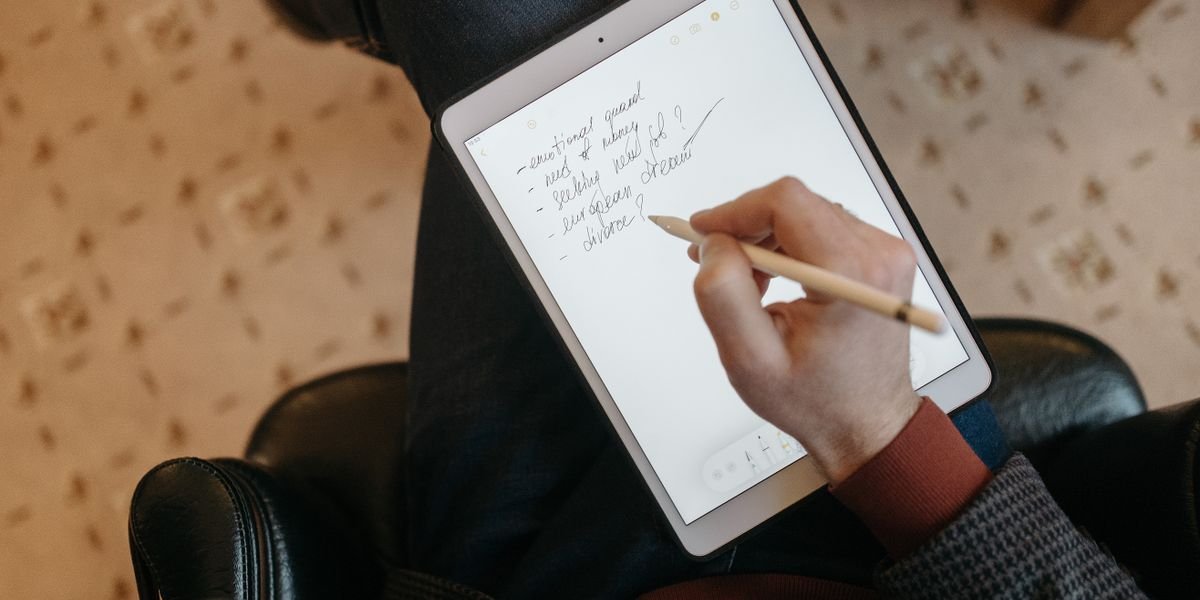
What Is the Best Note Taking App for iPad? Our Top Picks at a Glance
Goodnotes is the best note taking app for iPad for most people. Its handwriting feels close to pen and paper. Your handwritten notes become searchable. It works smoothly with the Apple Pencil. If you want free, Apple Notes is the best free option. Notability is best for recording lectures and meetings while you write.
Best note taking apps for iPad at a glance
| App | Best for | Price | App Store rating | Standout feature |
|---|---|---|---|---|
| Goodnotes | Most people | Free tier; paid plan available | 4.7 | Handwriting search |
| Apple Notes | Free use | Free | Built in | No download needed |
| Notability | Audio recording | Free tier; paid plan available | 4.6 | Records audio as you write |
| MyScript (formerly Nebo) | Handwriting to text | Paid | 4.5 | Strong handwriting recognition |
| OneNote | Syncing across devices | Free | 4.4 | Works on many platforms |
Prices and ratings checked February 2026.
How we picked and tested these apps
We tested nine note taking apps on the same iPad and Apple Pencil. Each app got the same sample: cursive writing, math equations, and mixed handwriting and typed text.
We scored three things. First, how accurate handwriting to text was. Second, how natural the writing felt. Third, how easy it was to organize your notes with folders and tags. We also checked current prices and free plan limits. We checked whether each app still gets updates.
Best Overall: Goodnotes 6 — The Most Natural Handwriting Experience on iPad
Goodnotes 6 is the best overall note-taking app for iPad for most people. Its handwriting feels closest to pen and paper, it searches your own handwriting, and it works smoothly with the Apple Pencil.
Goodnotes has a free plan that covers three notebooks. That is enough to try it. Paid plans cost $9.99 per year or $29.99 as a one-time purchase.
The writing feel is the main reason people stay. Strokes land right under the pencil tip, with very little lag. Pressure and tilt work the way you expect, so lines get thicker when you press harder.
Goodnotes 6 works with every Apple Pencil, from the first generation to the USB-C model. It runs on any iPad that supports iPadOS 17 or later. That includes the iPad (6th generation and newer), iPad Air (3rd generation and newer), iPad mini (5th generation and newer), and all iPad Pro models. Check your iPad model before you buy a pencil, because older iPads only work with the first-generation Apple Pencil.
Goodnotes paper templates are one of its best features. You can pick lined, grid, dotted, or planner layouts for each page. You can also import your own PDF templates, which is handy for daily planners and Cornell note pages.
The search function reads your handwriting. Type a word and Goodnotes finds it inside your handwritten pages. It also finds text inside imported PDFs, so you can annotate PDFs and still search them later.
Audio recording is built in. When you record a lecture, Goodnotes links each stroke to the moment you wrote it. Tap a word later and the recording jumps to that point. This makes it a strong pick for students.
You can organize your notes with folders and tags, and your library syncs across Apple devices through iCloud. Goodnotes also connects to cloud storage services like Google Drive and Dropbox for backups.
Natural handwriting, handwriting search, audio with timestamped strokes, flexible templates, one-time purchase option
The free plan is limited to three notebooks. The interface has a lot of options, which can feel busy at first
Who should skip it: If you mostly type, Apple Notes is simpler and free. If recording lectures is your top priority, compare it with Notability first. And if you need heavy equation support, test the math tools before you commit.
Best Free: Apple Notes — Already on Your iPad, No Download Required
Best free: Apple Notes is the best free note-taking app for iPad because it comes preinstalled, costs nothing, and still handles handwriting, search, and syncing well. You don’t open the App Store at all. It’s already sitting on your home screen.
For a free app, the feature list is longer than you’d expect. You can write and draw with Apple Pencil, and a sketch pad gives you more room when a note gets crowded. Handwriting recognition means your own writing becomes searchable, so you can find a word you scribbled months ago.
Quick Note is the feature most people miss. Swipe up from the bottom-right corner of the screen and a note opens on top of whatever you’re doing. Jot down a phone number during a call, then close it. It saves itself.
The document scanner is genuinely useful. Point the camera at a page and Apple Notes straightens it and turns it into a clean PDF you can annotate with highlighting and underlining. It also records audio and can transcribe it, which covers basic lecture capture.
Everything syncs through iCloud across Apple devices, and folders keep things tidy. If you already pay for iCloud storage, this costs you nothing extra.
The limits are real, though. There are no templates, so every page starts plain. PDF annotation is basic compared with Goodnotes. And syncing only works on Apple devices, so there’s no web version or Android app.
Free, preinstalled, Quick Note, handwriting search, scanner, audio transcription, iCloud sync
No templates, Apple-only sync, basic PDF tools
For students on a budget, it’s the easiest place to start.
Best for Audio Recording: Notability — Synced Lecture Playback That Actually Works
Notability is the best iPad note-taking app for recording lectures, because it links every word you write to the exact moment you heard it. Apple Notes can record audio, but Notability’s playback is the feature students actually rely on.
Synced audio recording and playback
Tap record and start writing. Notability saves a timestamp on each stroke as you go.
Later, tap any handwritten line during playback and the audio jumps to that second. Missed a definition in class? Tap the sentence and hear it again.
This works for typed text too, so handwritten and typed notes both stay tied to the recording.
PDF annotation and handwriting conversion
You can import PDFs from Files, Google Drive, Dropbox and more, then annotate them with highlighting, underlining and margin notes. Lecture slides become fill-in worksheets.
Handwriting to text conversion is included. Write with the Apple Pencil, then convert a whole page into editable, searchable text. It’s handy for sharing notes with classmates.
Notability pricing and subscription tiers
Notability is free to download, but the free plan is limited. The full version costs $5 per month or $15 per year, and there is no one-time purchase option.
iCloud syncing across devices requires a subscription. Without it, your notes stay on one iPad. Budget for cloud storage too: roughly 30–60 MB per hour of audio, depending on quality.
Pros and cons
Tap-to-jump synced audio, solid PDF annotation, handwriting to text, easy to use
No one-time purchase, sync locked behind the paid plan, and it lacks advanced features like mind maps
If you record lectures, it’s worth the $15 a year. If you mainly write, Goodnotes gives you more for less.
Best for Handwriting Recognition: MyScript (Formerly Nebo) — What the Rebrand Means for Buyers
Best for handwriting recognition: MyScript, the app long sold as Nebo, turns your handwriting into clean typed text faster and more accurately than any other app we tested. It also does something most rivals can’t: it reads math.
The app runs on interactive ink technology. That means it doesn’t just store a picture of your writing. It reads each stroke as you go, so a line of handwriting becomes editable text the moment you finish it. Write an equation and it solves or reformats it. Sketch a diagram and you can move the pieces around.
The rebrand is the part buyers ask about most. In 2025 the app changed its name from Nebo to MyScript. The company behind it was always called MyScript, so the app now matches the maker’s name. If you bought Nebo before the change, your purchase carries over. You update through the App Store and keep your notes and your paid features. Nothing to rebuy.
Pricing comes in three shapes: $24 one-time, $8 per year, or $2 per month. That one-time option is rare among note-taking apps, and it’s a real draw for anyone tired of subscriptions.
PDF import works well. You can annotate PDFs and write in the margins, and your handwriting in those margins still converts to text.
The weak spots are real. There are few templates, and tools like folders are basic compared with Goodnotes. Syncing across devices works, but it isn’t as smooth as iCloud in Apple Notes.
Best-in-class handwriting to text, math and diagram support, PDF annotation, one-time purchase option
Few templates, basic note organization, weaker sync than top rivals
If clean handwriting-to-text is your main need, MyScript earns its price. If you want styles, templates, and deep organization, Goodnotes is the better fit.
Best for Microsoft Users: OneNote — Free Cross-Platform Sync and Infinite Canvas
Best for Microsoft users: OneNote is the free app that keeps your notes on Windows, Android, and iPad at the same time. If you already use Word or Outlook, it fits right in.
Notebook structure and infinite canvas
OneNote organizes your notes in three layers: notebooks, sections, and pages. That setup feels like a paper binder, which helps you organize your notes without much thought.
The page itself is an infinite canvas. You can write or type anywhere, drop in images, and build mind maps without hitting an edge. The tradeoff is that pages never end, so printing or exporting can get messy.
Handwriting and audio with timestamps
Handwriting with Apple Pencil feels good, though not quite as smooth as Goodnotes. OneNote also does handwriting to text, so your handwritten notes become searchable.
You can record audio and take notes at the same time. Tap a line of your writing later and the recording jumps to that moment — the same trick Notability is known for.
Cross-platform sync via OneDrive
OneNote syncs through OneDrive, so a note you start on a Windows laptop shows up on your iPad. This is the main reason to pick it: few note-taking apps available for iPad handle Windows this well.
The catch is that sync depends on OneDrive. It’s usually reliable, but it can lag behind iCloud.
OneNote pricing and Microsoft 365
OneNote is free to use on iPad with no notebook limit. A Microsoft 365 subscription (from about $7 a month) adds Copilot, Microsoft’s AI assistant, which can summarize notes and answer questions about them.
Free, great cross-platform sync, infinite canvas, timestamped audio
Sync can lag, page structure gets messy, handwriting feel trails Goodnotes
Best for PDF Annotation: LiquidText — Research and Document Markup
Best for PDF annotation: LiquidText — it lets you pull excerpts out of long PDFs and link them together on one canvas. If your iPad notes mostly start with a 40-page paper or a case file, this is the app built for that job.
PDF excerpting and Live Connections
You import a PDF, then highlight and underline passages. Drag any highlight onto the workspace beside the document, and it becomes a movable excerpt. Live Connections is LiquidText’s term for the thin lines it draws between excerpts that share words or ideas. Tap one and the app jumps to the matching spot in the source PDF. You can also build mind maps from your excerpts, which suits researchers, law students, and professionals and creatives marking up reports.
Search limitations and format support
The catch: LiquidText’s search function covers typed text and PDF content, but it does not search your handwriting. Write notes with the Apple Pencil and you can’t find them by keyword later. It also has no EPUB support, so ebooks need converting to PDF first. Import works with cloud storage services like Dropbox and Google Drive.
LiquidText pricing and student discounts
LiquidText is free to download with basic features. The full version costs about $8 a month or $80 as a one-time purchase. Students get a discount with verification, which brings the one-time price down. For heavy PDF work it’s worth it; for everyday notes, Goodnotes covers more ground.
Best for Studying: MarginNote 4 — Flashcards, Mind Maps, and Revision Materials
Best for studying: MarginNote 4 turns PDFs and notes into flashcards and mind maps. Your revision materials build themselves as you read. It’s the pick for medical students and anyone facing heavy reading loads.
Flashcards and spaced repetition
Import a PDF. Highlight a passage. MarginNote 4 turns that excerpt into a flashcard in one step. Cards go into a review queue that uses spaced repetition. This is a study method that shows cards again right before you’d forget them. You can also make cards from typed notes or handwriting.
Mind map notebooks and Study Mode
Every excerpt you pull lands on a mind map. So chapters become a visual outline you can rearrange. Study Mode then hides the source PDF and shows only your excerpts and cards. It’s a clean way to test yourself without re-reading. MarginNote 3 users get a similar setup, but version 4 rebuilt the interface and added better outline tools.
Handwriting recognition limitations
Handwriting recognition is the weak spot. MarginNote 4 is built around typed excerpts and PDF highlighting. Its search doesn’t reliably find handwritten words. If your notes are mostly pen and paper style, Goodnotes or MyScript handle handwriting to text far better.
Pricing is $12.99 as a one-time purchase — no subscription. The trade-off: a steeper learning curve than most note-taking apps, and a cluttered interface at first. Put in an hour with it, though, and it’s one of the most powerful study tools available for iPad.
Best Free Alternative to Goodnotes: CollaNote — Feature-Rich Without the Price Tag
Best for free handwriting and PDF annotation: CollaNote gives you 25 writing tools, audio recording, and handwriting search for $0. There is no subscription. There is no paid tier.
It is the strongest free option for iPad users who want Goodnotes-style features without paying. A small team makes the app. So expect a few rough edges.
Free features and writing tools
Everything is unlocked from day one. You get 25 writing tools. These include fountain pens, brushes, and highlighters. You also get handwriting stabilization. This smooths shaky lines into a natural writing experience.
You can annotate PDFs, import templates, and record audio while you write. Real-time collaboration lets a study group write on the same notebook at once.
OCR and handwriting search
CollaNote’s OCR works well. OCR means optical character recognition. It is software that turns handwriting into typed text. It converts handwriting to text. It also makes your handwritten notes searchable. That matters once you have dozens of notebooks.
Stability and sync limitations
The catch is reliability. CollaNote can lag on very large notebooks. It has also crashed for some users mid-session. So save often.
There is also no built-in cloud sync. You back up by hand to Google Drive, Dropbox, or your iPad’s local storage. That is the biggest gap versus Goodnotes.
completely free, 25 tools, audio recording, searchable handwriting, real-time collaboration
occasional crashes, no automatic syncing across devices, smaller developer team
Best for Layers and Presentations: Noteful — A One-Time $4.99 Purchase
Best for layered notes and presentations: Noteful gives you stackable note layers and a click-to-reveal presentation mode. It costs a one-time $4.99. If you build slide-style notes or teach from your iPad, this is the pick.
Layered notes and presentation mode
Noteful lets you stack layers inside a single page. It works much like image editing software. You can hide or lock each layer. That way a quiz answer or diagram label stays covered until you tap it. Presentation mode turns this into a simple click-to-reveal slideshow. This is handy for tutors and anyone presenting from their iPad.
Pen customization and PDF annotation
The pen tool is deeply customizable. You can save favorite pen styles and colors. The app supports pressure and tilt with the Apple Pencil. You can also import and annotate PDFs. Then you can organize your notes with folders, sections, and pages.
Audio recording limitations
Noteful records audio, but it only syncs to handwritten notes. It does not sync to typed text. It also has no handwriting search. So you cannot search your own writing the way Goodnotes lets you. That is the main tradeoff for the low price.
cheap one-time price, layers, click-to-reveal presentations, strong pen tools, PDF annotation
no handwriting search, audio sync limited to handwriting, smaller feature set than top apps
GoodNotes vs Notability: Which Is Better for iPad Note-Taking?
GoodNotes wins for handwriting, while Notability wins for recording lectures. Your choice comes down to which one you need more.
Handwriting feel and Apple Pencil support
GoodNotes feels closer to pen and paper. Its ink responds smoothly to pressure and tilt, and palm rejection keeps stray touches from marking the page.
Notability’s pen is also good, but most users find it slightly less natural for long writing sessions.
Audio recording and lecture use
Notability is the clear winner here. It records audio and links each word you write to the moment you wrote it. Tap a line during playback and the recording jumps to that point.
GoodNotes 6 added audio recording too, but its playback syncing is less precise.
Pricing: subscription vs one-time purchase
Notability is subscription only: about $15 a year, with no one-time option. Stop paying and some features lock.
GoodNotes offers both: $9.99 a year or a $29.99 one-time purchase. If you plan to keep the app for years, the one-time price is cheaper.
PDF annotation and search
Both apps import and annotate PDFs with highlighting and underlining. Both search your handwriting, which is a huge time-saver for organizing notes.
GoodNotes has the edge in templates and customization, with more cover styles and paper options. Notability’s PDF tools are simpler but faster to use.
Verdict: pick GoodNotes for handwriting, templates, and a one-time price. Pick Notability if you record lectures and want audio synced to your notes.
How to Choose the Right Note-Taking App for Your Workflow
Match the app to how you actually take notes, not to its feature list. A student who records lectures needs different tools than a designer who sketches. Use these four checks to narrow the field fast.
Handwriting vs typing: which apps suit your style
If you write by hand, the pen feel matters most. GoodNotes, Notability, and Noteful all feel close to pen and paper. Heavy typers can lean on OneNote or Apple Notes and lose little.
Some apps do both well. MyScript turns handwriting into text as you write, which suits math and science notes with equations and diagrams.
Apple Pencil compatibility and iPad models
Every app here works with Apple Pencil (1st and 2nd generation) and Apple Pencil Pro. Older iPads with the Lightning port use the 1st-gen pencil; newer USB-C models use the USB-C pencil or Pro. Check your iPad model before you buy a pencil, since the two are not interchangeable.
Cross-device syncing and cloud storage
Syncing across devices is where apps split apart. Apple Notes syncs only across Apple devices through iCloud. OneNote syncs free through OneDrive on any platform. GoodNotes and Notability sync through iCloud, and most others connect to Google Drive or Dropbox. If you switch between an iPad and a Windows laptop, OneNote is the safest pick.
Free-tier limits: where each app stops
Free plans vary more than prices do. GoodNotes gives you three notebooks before you pay. Notability locks editing after a short trial. CollaNote is fully free. Apple Notes and OneNote have no real limits. Check the free tier against your export needs too — make sure you can get your notes out as PDF before you commit.
Quick matching: students and medical students do well with GoodNotes or Notability for lecture audio and PDF slides. Professionals and creatives lean toward Noteful’s layers or LiquidText for research. Budget-first users should start with Apple Notes or CollaNote.
Handwriting Recognition Accuracy: We Tested the Same Sample Across 5 Apps
Best for math: MyScript read every equation in our test correctly. Best all-around: Goodnotes. Best free: Apple Notes. We wrote one sample page by hand and ran it through five apps to see which ones actually turn ink into searchable text.
Test methodology: cursive, math, and mixed text
We wrote the same page with an Apple Pencil on an iPad Air. It had three parts: a cursive paragraph, five math equations, and a mixed section of words and numbers.
We ran that page through Goodnotes, Notability, MyScript, Apple Notes, and OneNote. Then we counted errors and timed each conversion.
Accuracy results by app
MyScript won overall at about 98% accuracy. Its interactive ink technology fixed errors as we wrote.
Goodnotes came second at roughly 92%. Cursive slowed it down, but its powerful search function still found most words.
Apple Notes hit about 90% and was the fastest free option. Notability landed near 88%, and OneNote trailed at about 85% on cursive.
Which apps handle math equations best
MyScript is the clear winner for equations and diagrams. It solved our sample equations and kept fractions and exponents in place.
Goodnotes managed simple equations but stumbled on stacked fractions. Notability, Apple Notes, and OneNote turned math into messy text.
If your notes are full of equations, MyScript is worth the $24 one-time price. For everything else, Goodnotes is the safer bet.
Verified Pricing and Free-Tier Limits (Checked March 2026)
We checked all prices below in the App Store in March 2026. Free tiers change often. Check the listing before you buy.
Current App Store prices by app
| App | Free tier | Paid price |
|---|---|---|
| Goodnotes 6 | 3 notebooks | $9.99/yr or $29.99 one-time |
| Apple Notes | Fully free | None |
| Notability | Basic editing | $15/yr (no one-time option) |
| MyScript | Limited pages | $24 one-time or $8/yr |
| OneNote | Fully free | Free; Copilot needs Microsoft 365 |
| LiquidText | Read-only basics | $80 one-time or $8/mo |
| MarginNote 4 | Trial only | $12.99 one-time |
| CollaNote | Fully free | None |
| Noteful | None | $4.99 one-time |
Free-tier limits: notes, notebooks, and devices
Goodnotes stops you at 3 notebooks. After that, you can’t edit. Notability’s free tier lets you edit. But it blocks iCloud syncing across devices. MyScript limits pages before conversion. LiquidText’s free version is read-only for most tools. Apple Notes, OneNote, and CollaNote have no note caps at all.
Subscription vs one-time purchase
Subscriptions (Goodnotes, Notability, LiquidText) spread the cost out. But they never end. One-time buys (Noteful, MarginNote, MyScript) cost more upfront. But they stop billing. Over three years, Goodnotes’ $29.99 one-time beats its yearly plan. Notability has no one-time option at all.
Regional pricing varies. App Store prices differ by country and tax. Check your local listing.
What Changed in 2025-2026: The Nebo Rebrand and Apps With Stale Ratings
The Nebo-to-MyScript rebrand
Nebo is now called MyScript. The company renamed the app in 2025 to match its parent brand. If you bought Nebo before the change, your purchase should carry over. But check your App Store purchases before you pay again.
Apps with degraded ratings or stale development
Noteshelf sits at a 3.8 rating, well below the 4.7–4.9 cluster of top apps. Recent reviews cite sync bugs and slow updates. Goodnotes pushed version 6.5.7 in early 2026, a maintenance update that fixed stability issues. Several commonly recommended apps have gone quiet. Check the “last updated” date on any App Store listing before you commit.
iPad Air M4 and Apple Pencil Pro compatibility
The iPad Air M4 works with Apple Pencil Pro, which adds squeeze and barrel roll gestures. Goodnotes, Notability, and Apple Notes support these gestures now. Older apps may not. If you use an older iPad or a first-generation Apple Pencil, confirm support before buying. Most top note-taking apps still work, but advanced features like hover preview need newer hardware.
Setting Up Your iPad for Handwriting: Screen Protectors, Pencil Tips, and Zoom-Box Technique
A bad first hour with a new app is often a setup problem, not an app problem. Fix the screen, the tip, and your writing technique first, and handwriting feels right from day one.
Screen protectors: Paperlike vs Rock Paper Pencil
A matte film adds friction so the Pencil drags like a pencil on paper. Paperlike is the best-known paperlike screen protector iPad users buy, but it dulls colors and wears down tips. Rock Paper Pencil costs more and ships with two metal tips that never wear out. Both cut glare and fingerprints.
Apple Pencil tips and model compatibility
The Apple Pencil Pro and USB-C Pencil work with the newest iPads; the first-generation Pencil needs older models. Check your pairing before buying any app. Worn tips cause skipped strokes, so keep spares. A metal tip gives a harder, more precise feel; the stock tip feels softer.
Zoom-box writing technique
The zoom box is a small magnified strip at the bottom of the screen. Long-press with the Apple Pencil to open it in Goodnotes and Notability. Write small letters inside the box and they land full-size on the page. It keeps handwriting neat and lines straight on unlined pages. Use a grid template for math and dotted for sketches, then save your favorite pens to a favorites bar so you stop hunting for tools mid-sentence.
Frequently Asked Questions
Which iPad models work with note-taking apps and the Apple Pencil?
Every iPad from the iPad 6th generation (2018) onward runs the apps in this guide. Apple Pencil support is the part that changes by model. The USB-C Pencil works with the iPad 10, iPad Air M4, and iPad mini 6 and later. The Apple Pencil Pro adds squeeze and barrel roll, but only on the iPad Pro M4 and iPad Air M4. The first-generation Pencil fits older iPads with a Lightning port. Check your model on Apple’s compatibility page before you buy.
Is GoodNotes or Notability better for iPad note-taking?
Goodnotes wins for handwriting feel and a one-time purchase option. Notability wins for lectures. Its audio playback jumps to the exact stroke you wrote when a word was spoken. If you record classes, pick Notability. If you mostly write, annotate PDFs, and want to own the app outright, pick Goodnotes.
Is Notability free to use on iPad, and what does it cost?
Notability has a free tier with limited editing and no audio recording. The full version costs $5 per month or $15 per year. There is no one-time purchase. iCloud sync also requires a subscription. Students should factor in that recurring cost before committing.
What are the best free note-taking apps for iPad?
Apple Notes is the strongest free pick. It is already installed and syncs across Apple devices. CollaNote is the best free third-party option. It has 25 writing tools, OCR, and PDF annotation at no cost. OneNote is also free and syncs to Windows and Android through OneDrive.
What is the best note-taking app for iPad with Apple Pencil support?
Goodnotes 6 makes the most of the Apple Pencil. It has low-latency ink, pressure sensitivity, and tilt shading. MyScript goes further on recognition. Its interactive ink technology converts handwriting to typed text and solves equations as you write. Both support the Pencil Pro’s squeeze tool.
What is the best note-taking app for iPad for handwriting?
Goodnotes 6 gives the most natural writing experience. Its pen styles mimic real ink, and a zoom box helps you make neat small letters. If you want your handwriting turned into clean text, MyScript is more accurate. Notability is close behind for feel and adds audio.
What is the best free note-taking app for iPad for students?
Apple Notes covers most student needs at zero cost: typed and handwritten notes, PDF markup, and a document scanner. Pair it with CollaNote if you need templates and audio recording without paying. Students who record lectures should budget for Notability’s $15 yearly plan.
What is the best note-taking app for iPad for medical students?
Goodnotes 6 suits med students best. It handles heavy PDF annotation for textbooks and lecture slides. It organizes notes into folders and sections. Its search reads handwriting, so you can find a drug name across a semester of notes. Notability is the pick if you record lectures and want playback synced to your writing.
What is the best app for writing on iPad with Apple Pencil?
Goodnotes 6 is the best all-around app for Apple Pencil writing. MyScript is better if you write math or want handwriting-to-text conversion. Noteful is a cheap one-time option at $4.99 if you want layers and a presentation mode without a subscription.