What Is the Best Photo Editing App for Android?
For most Android users, the best free photo editing app android has to offer is Snapseed. It is completely free. It has no ads. It adds no watermark. For advanced work like RAW files and color grading, Adobe Lightroom Mobile is the top pick. It has pro-level tools and cloud sync.
We did not just compare feature lists. We installed all eight apps on budget, mid-range, and flagship Android phones. The phones ran different Android OS versions. Then we edited the same set of test photos on each one. That is how we caught the slowdowns, missing features, and free-tier limits that generic cross-platform lists miss.
The gap between the best and worst apps is bigger than you would expect. Some apps shine on iPhone and Android flagships. But they crawl on budget hardware. Others quietly drop standard editing options on certain devices. These options include contrast, saturation, and curves.
Below, each app gets a clear best-fit label. You also get its real pricing and the drawbacks we hit in testing. Then a quick decision guide matches you to the right one. Are you a casual snapper, a serious hobbyist, or a social-media creator?
1. Snapseed: Best Free All-Rounder with No Ads or Watermark
Snapseed is the best photo editing app for most Android users: it’s completely free, with no ads, no watermark, and no subscriptions. For advanced or RAW work, Adobe Lightroom Mobile is the stronger pick. Snapseed gives you 29 tools, and every one of them is unlocked from the moment you install it.
How Does Snapseed’s Selective Adjustments Tool Work for Local Edits?
Selective adjustments let you change one part of a photo without touching the rest. You tap the area you want, then adjust brightness, contrast, saturation, or structure with a swipe. It’s a simple way to fix a dull sky or brighten a face without editing the whole image.
What Can You Do with Snapseed’s Healing and HDR Scape Tools?
The healing tool removes small distractions, like a trash can in the background or a spot on a wall. HDR Scape brings back detail in shadows and highlights, which helps flat-looking shots. Perspective correction straightens buildings that lean in wide shots. These tools would cost money in many other apps.
Does Snapseed Support RAW DNG Editing on Android?
Yes. Snapseed opens RAW DNG files, so you can edit before the phone compresses the image. Edits stay non-destructive, meaning your original file is never overwritten. You can also save your favorite settings as custom presets and reuse them on new photos.
How Well Does Snapseed Perform on Budget and Mid-Range Android Phones?
Snapseed runs smoothly on older and budget phones. In our tests, it opened fast and saved edits without lag on mid-range devices. The trade-off is that it lacks modern AI automation. There’s no generative fill, and no one-tap sky replacement like you get in Photoshop or Lightroom.
Which should you pick? Casual users and hobbyists: Snapseed, since it’s free and covers nearly everything. Social-media creators: Snapseed for quick edits, but check the paid picks for AI tools. Pros: Lightroom Mobile for RAW control.
2. Adobe Lightroom Mobile: Best for RAW Editing and Professional Workflows
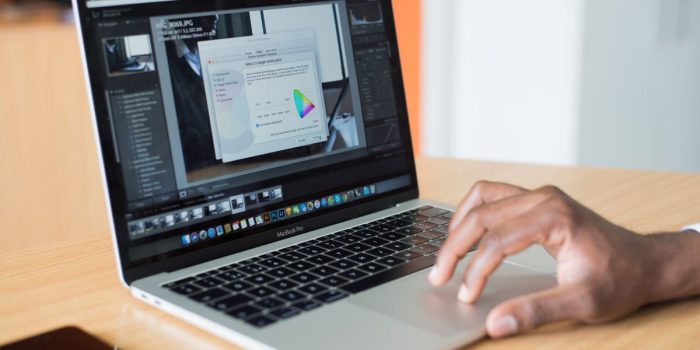
Adobe Lightroom Mobile is the best Android photo editing app for RAW files and pro-level work. It gives you the same editing engine professionals use on desktop, in a phone app. That makes it the strongest choice when image quality matters more than saving money.
Which RAW Formats Does Lightroom Mobile Support on Android?
Lightroom Mobile opens DNG files and native camera RAW from most Android phones. That includes files from Pixel, Samsung, and many other brands. You get full control over highlights, shadows, white balance, and color grading. The free version handles basic adjustments like exposure, contrast, and saturation. For professional camera RAW files, though, you need a paid plan.
How Do Lightroom Mobile’s AI-Powered Tools Like Generative Remove Work?
The AI tools are where Lightroom pulls ahead of free apps. Generative Remove erases unwanted objects and fills the gap with matching content. Lens Blur adds fake depth of field to flat shots. Distraction Removal clears small clutter in one tap. In our tests, Generative Remove handled simple backgrounds well but sometimes smeared fine textures like hair or leaves.
What Are the Limitations of Lightroom Mobile’s Free Tier?
The free tier is useful but limited. You get standard editing options and basic presets, but no Generative Remove, no Lens Blur, and no professional camera RAW support. The standalone plan costs $11.99 per month and includes 1TB of cloud storage. That storage syncs your edits across Android and iOS, so you can start on your phone and finish on a tablet or desktop.
How Does Lightroom Mobile Handle Large RAW Files on Android Devices?
Large RAW files are heavy, and performance depends on your phone. On flagship devices, 40–50MB DNG files opened and edited smoothly in our tests. On budget phones, previews loaded slowly and the app occasionally stuttered during heavy edits. If you shoot RAW often, a phone with 8GB of RAM or more makes a real difference.
Which should you pick? Casual users: skip it and stay with Snapseed. Social-media creators: worth it if you want AI cleanup tools. Pros: the clear pick for RAW editing and color grading.
3. Adobe Photoshop Express: Best for Quick AI-Powered Fixes and Casual Editing
Photoshop Express is the pick for fast, one-tap edits on Android. It is made for people who want a better photo in seconds, not a full editing session.
What One-Tap Enhancements Does Photoshop Express Offer?
The app opens with Auto Fix, Auto Tone, and Auto Color. Each one adjusts your photo’s brightness, contrast, and color balance with a single tap. You also get basic filters, collage making, blemish removal, and red-eye correction. All of these come free, with no watermark on your exports.
Which Photoshop Express Features Require a Creative Cloud Subscription?
The basics are free. The smarter AI tools are not. Background removal, object selection, and RAW editing sit behind a Creative Cloud subscription. If you only want quick fixes, the free tier covers you. If you want the AI extras, expect a monthly fee.
How Does Photoshop Express Differ from the Full Photoshop App on Android?
This is not the full Photoshop app. It is a lighter, simpler tool with a stripped-down set of standard editing options. You will not find layers, masks, or advanced retouching here. For those, you need the full app or Lightroom Mobile.
Photoshop Express runs on Android and iOS and installs from the Google Play Store. It performs well on mid-range and flagship phones. On older budget devices, the AI tools can lag, but the one-tap fixes stay quick.
Which should you pick? Casual users: Photoshop Express for free one-tap fixes. Social-media creators: it works well for quick collages and cleanups. Pros: skip it and use Lightroom Mobile.
4. PicsArt: Best for Social Media Content Creation with Templates and AI Tools
PicsArt is the best photo editing app for Android users who make content for social media. It gives you ready-made templates and AI tools that turn a plain photo into a post in minutes.
How Many Templates and AI Tools Does PicsArt Offer for Social Media?
PicsArt offers more than 80,000 templates sized for Instagram, TikTok, and YouTube. You also get 25+ AI tools, including background removal, AI Expand, and AI Writer. Creative effects like double exposure and blending modes round out the set.
What Are the Free Tier Limits for Saves and AI Credits in PicsArt?
The free tier is tight. You get 3 saves per day and 5 AI credits per week. That is not enough for regular posting. PicsArt Plus costs about $13 per month, and Pro runs about $15 per month. Both lift the limits and unlock the full tool set.
Does PicsArt’s Performance Lag on Older Android Devices?
Yes, it can. On older budget phones, the template browser and AI tools load slowly and may stutter. Mid-range and flagship Android devices run it smoothly. If your phone is a few years old, test the free tier before you pay.
5. VSCO: Best for Film-Style Aesthetics and Preset Recipes
VSCO is the best photo editing app for Android when you want a film-style look. It is built around preset “recipes” that copy the color and grain of real film stocks. If you want a subtle, moody aesthetic rather than heavy edits, this is the app to try.
Which Film Presets Does VSCO Offer, Such as Kodachrome and Portra?
VSCO offers more than 200 presets. Many copy classic films like Kodachrome, Kodak Portra, and Fuji Velvia. There are also black-and-white filters. The edits stay subtle, so photos look like film, not like a filter was slapped on. You can still fine-tune exposure, contrast, and saturation by hand.
What Are the Common Complaints About VSCO’s Paywall on Android?
The free tier is very limited. Most presets sit behind the Plus Plan, which costs $29.99 per year and includes a 7-day free trial. Many Android users complain that the paywall is aggressive. Features that used to be free have moved behind the subscription over time, and the app often pushes upgrades. That frustrates long-time users.
VSCO runs on both Android and iOS, and it performs well on mid-range and flagship phones. Older budget devices may load presets slowly.
6. Pixlr: Best for Beginners Who Want Simplicity Without Sacrificing Features
Pixlr is the best photo editing app for Android beginners who want a simple start but still need real tools. It is free to download from the Google Play Store and runs on both Android and iOS.
The layout is clean and easy to learn. New users find the standard editing options fast: crop, contrast, saturation, and exposure all sit in plain view. You do not need to hunt through menus to make a basic fix.
How Do Pixlr’s Multi-Layered Templates Work for Beginners?
Multi-layered templates let you stack elements like text, stickers, and overlays on separate layers. Each layer can be moved or deleted on its own, so a mistake never ruins the whole image. Blending modes then control how those layers mix with the photo underneath. This gives beginners a taste of layered editing without the steep learning curve of Photoshop or Lightroom.
What Are the Free Tier Limitations and Ads in Pixlr on Android?
The free tier caps you at 3 saves per day and gives you 100 AI credits to start. Pixlr Plus costs $0.75 to $1.99 per month and removes the save limit and all ads. On the free tier, ads interrupt editing, sometimes mid-edit. The AI-powered tools also feel less sharp than what you get in specialized apps.
Pixlr runs smoothly on mid-range and flagship phones. Older budget devices may stutter when you stack many layers.
How Do You Choose the Best Photo Editing App for Your Android Phone?
For most Android users, Snapseed is the best photo editing app because it’s free with no ads or watermark. For advanced or RAW work, Adobe Lightroom Mobile wins on color grading and pro tools. The right pick still depends on what you shoot.
Casual users should start with Snapseed. It covers standard editing options like contrast, saturation, and cropping without costing anything. If you want one-tap fixes, Photoshop Express handles Auto Fix and blemish removal in seconds.
Social media creators get more from PicsArt’s templates for Instagram and TikTok, or VSCO if you want a film-style look. Both lean on subscriptions, so check the free limits first.
Professional photographers need Lightroom Mobile. It reads RAW files and gives you precise color grading that free apps can’t match.
Android itself adds a few things to weigh. Budget phones can lag with heavy layers or large RAW files, while flagships handle both smoothly. Free tiers on Android often cap saves or AI credits, so read the fine print. Feature parity between iOS and Android is close for these apps, but a few tools arrive on iPhone first.
Which should you pick? Casual: Snapseed, then Photoshop Express. Creator: PicsArt or VSCO. Pro: Lightroom Mobile.
Frequently Asked Questions
Is Snapseed completely free, or does it have ads, subscriptions, or in-app purchases?
Snapseed is completely free. It has no ads, no subscriptions, and no in-app purchases. Every tool is unlocked from the moment you install it. This includes selective adjustments and RAW DNG editing. That is rare among photo editing apps for Android. Most rivals push a paid tier.
Which photo editing app is considered the best overall for Android?
Snapseed is the best overall pick for most people. It covers the standard editing options well. These include exposure, contrast, saturation, healing, and perspective. It has no watermark and no cost. For advanced work like RAW files and color grading, Adobe Lightroom Mobile is the stronger choice.
Can CapCut edit photos, or is it only for video?
CapCut does edit photos, not just video. You can import a still image. You can apply filters, adjust contrast and saturation, add text and stickers, and export it as an image file. It is built for video first, though. So for serious mobile photo editing, a dedicated app like Snapseed is the better fit.
Which camera app is best for photography on Android?
There is no single best camera app. The answer depends on your phone. Most Android phones shoot best with the built-in camera app. It is tuned to that device’s hardware. If you want more manual control, Open Camera is a free, ad-free option with RAW support.
How We Tested These Android Photo Editing Apps
We installed every app on three phones. The phones were a budget Moto G Power (Android 13), a mid-range Samsung Galaxy A54 (Android 14), and a flagship Google Pixel 8 Pro (Android 15). On each device we edited the same set of photos: bright outdoor shots, low-light indoor shots, portraits, and RAW DNG files.
We scored each app on six things. Editing depth covered standard tools like contrast and saturation, plus advanced options. Performance meant load times, lag while dragging sliders, and crashes on the budget phone. We also logged free-tier limits, such as watermarks and daily save caps.
Next we checked where AI processing runs. Some tools work on-device. Others send your photo to the cloud. That needs a steady connection and raises privacy questions. We also tested file management and EXIF preservation, since some apps strip camera data on export. Finally, we compared each Android version against its iOS counterpart to flag missing features.